Library Reserves in Blackboard
ARES is a Library eReserves system used by the AOK Library to automate library reserve services and provide around-the-clock access to reserves collections. ARES is designed to work smoothly with Blackboard, allowing library staff, course instructors and students quick and easy access to course reserves information.
New for May 2023:
The Ares Library Reserves Blackboard integration was recently upgraded to LTI 1.3. This updated Blackboard integration will allow instructors to link to their course reserves home and also link directly to specific reserves items. This new item-linking feature supports modular and unit-based course organization by giving instructors more flexibility in how they link course reserves materials in Blackboard.
Library Reserves (Library Website)↗︎
Note
Students must access the Library Reserves Course Home link before accessing links for individual reserves items. Selecting individual links first may result in an error message. To correct this error, students should close the Ares browser window, return to their Blackboard course, and launch the Library Reserves Course Home link in their course. After the Course Home link has been launched, the links to individual reserves items should work correctly.
Tell Me
Log into your Original or Ultra course. Then follow the instructions for the appropriate interface to set up the Reserves link.
ULTRA
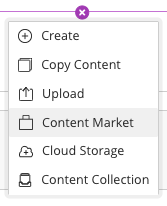
- Click the purple (+) where you want the reserves link to reside. This may be inside a folder, learning module, or on the course outline itself.
- Select Content Market.
- After the layer opens, find "Library Reserves Home" from the list of institutional tools and click the (+) to add the link to your course.
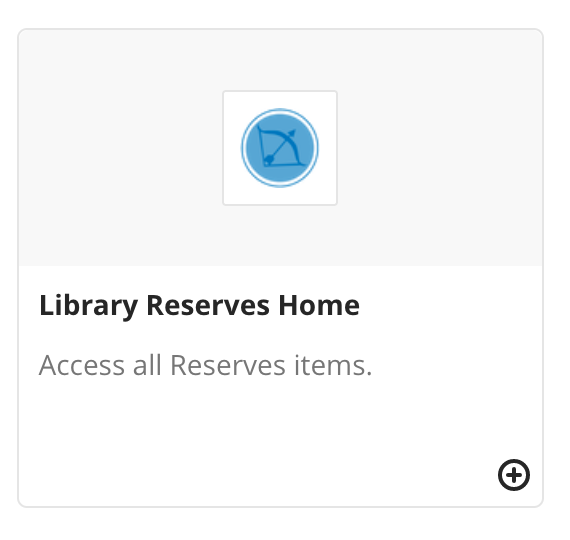
- The link will be immediately added to your Ultra course.
Click the new reserves link to provision your course in Ares. You may be prompted to select the term associated with the course.
 BE PATIENT. Ares may take a minute or two to provision your course and load on the new page.
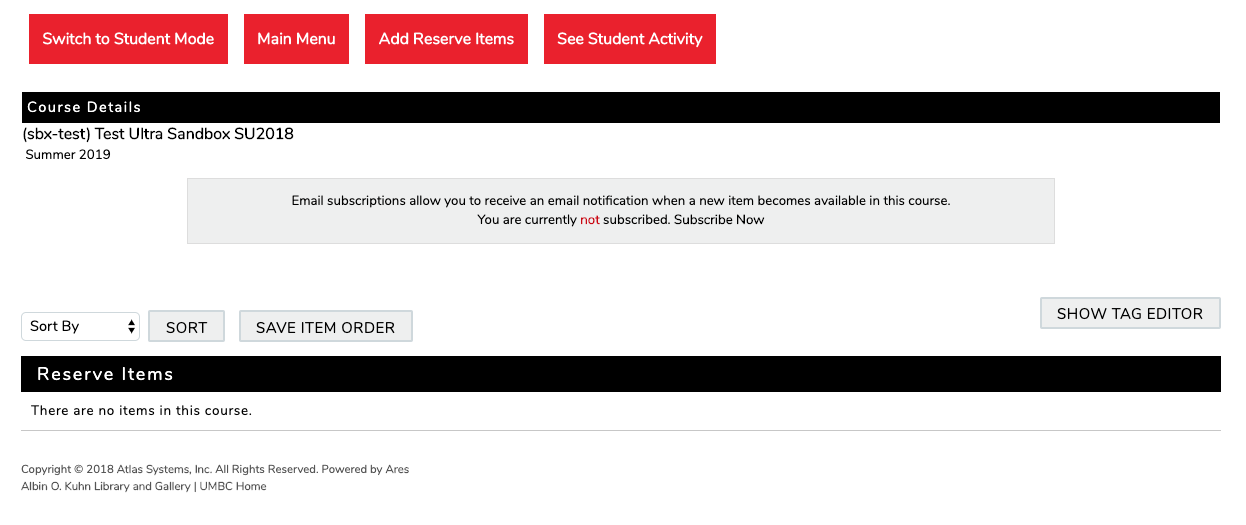
After your course is provisioned in Ares, you will see the Reserves dashboard.
NOTE
A link to the Library Reserves Course Home must be created before you may add links to individual reserves items.
- Click the purple (+) where you want the reserves link to reside. This may be inside a folder, learning module, or on the course outline itself.
- Select Content Market.
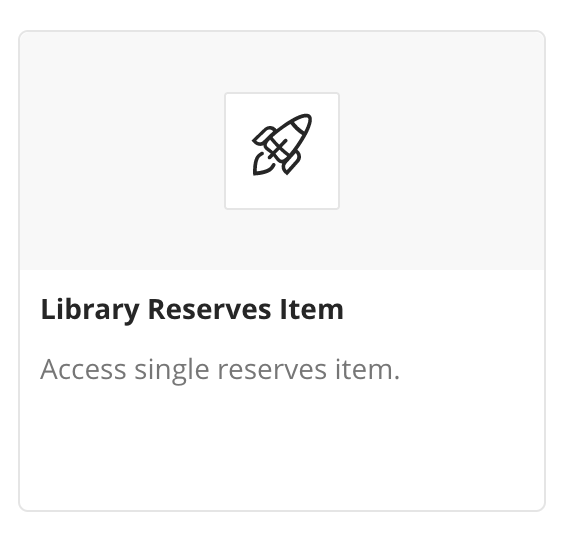
- After the layer opens, select "Library Reserves Item" from the list of institutional tools to add the link to your course.
- Click the "Select" button on the left side of the reserves item you would like to add to your course. Note: If the "Select" button does not appear, please use Firefox or a private browser window.
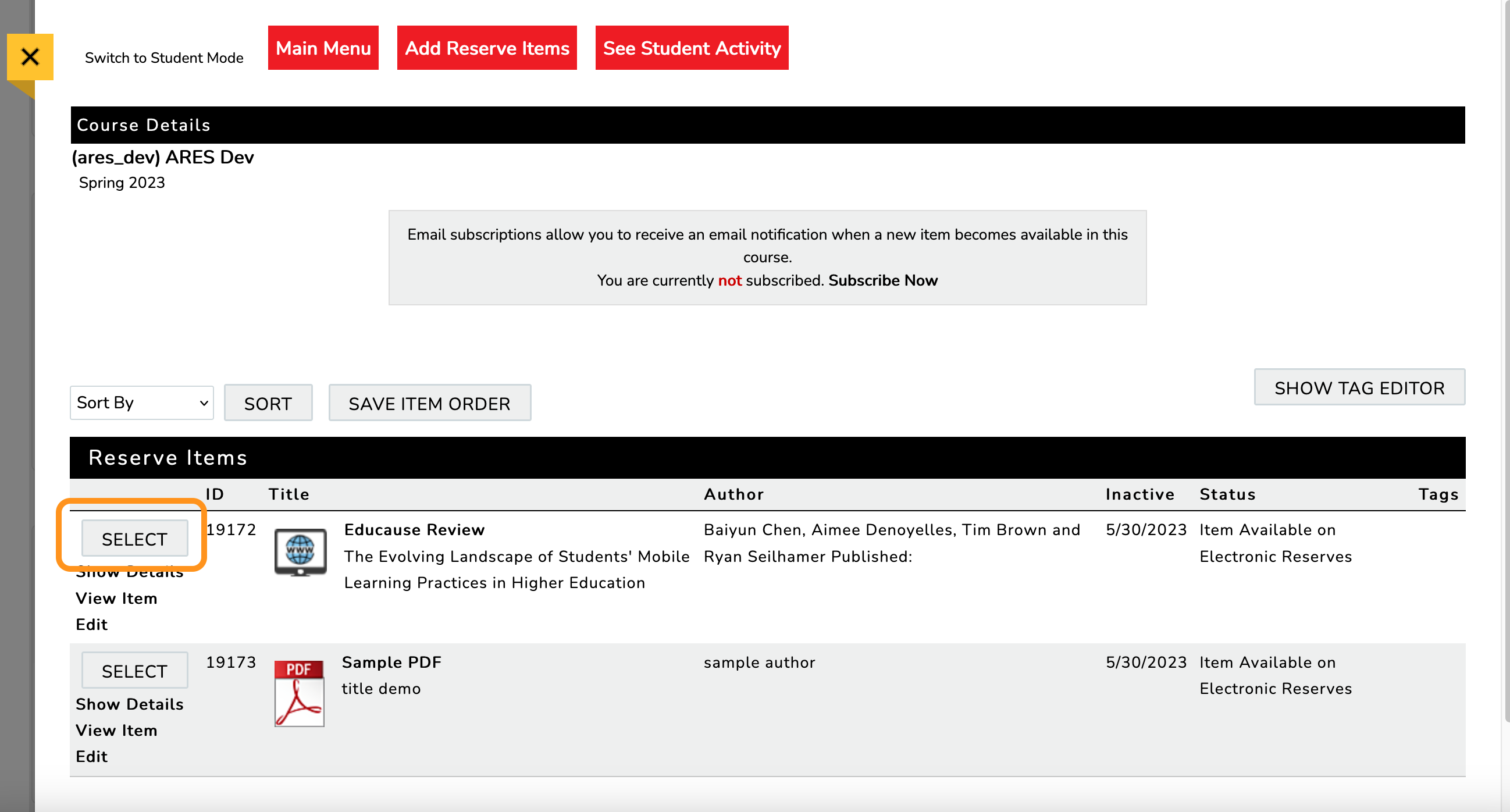
- The link should be placed in your course.
ORIGINAL
- Go to the content area in your course where you want the reserves link to reside. For example, you may have the link under Course Materials or Course Readings.
- Select TOOLS → More Tools. Select "Library Reserves Home" from the expanded list.
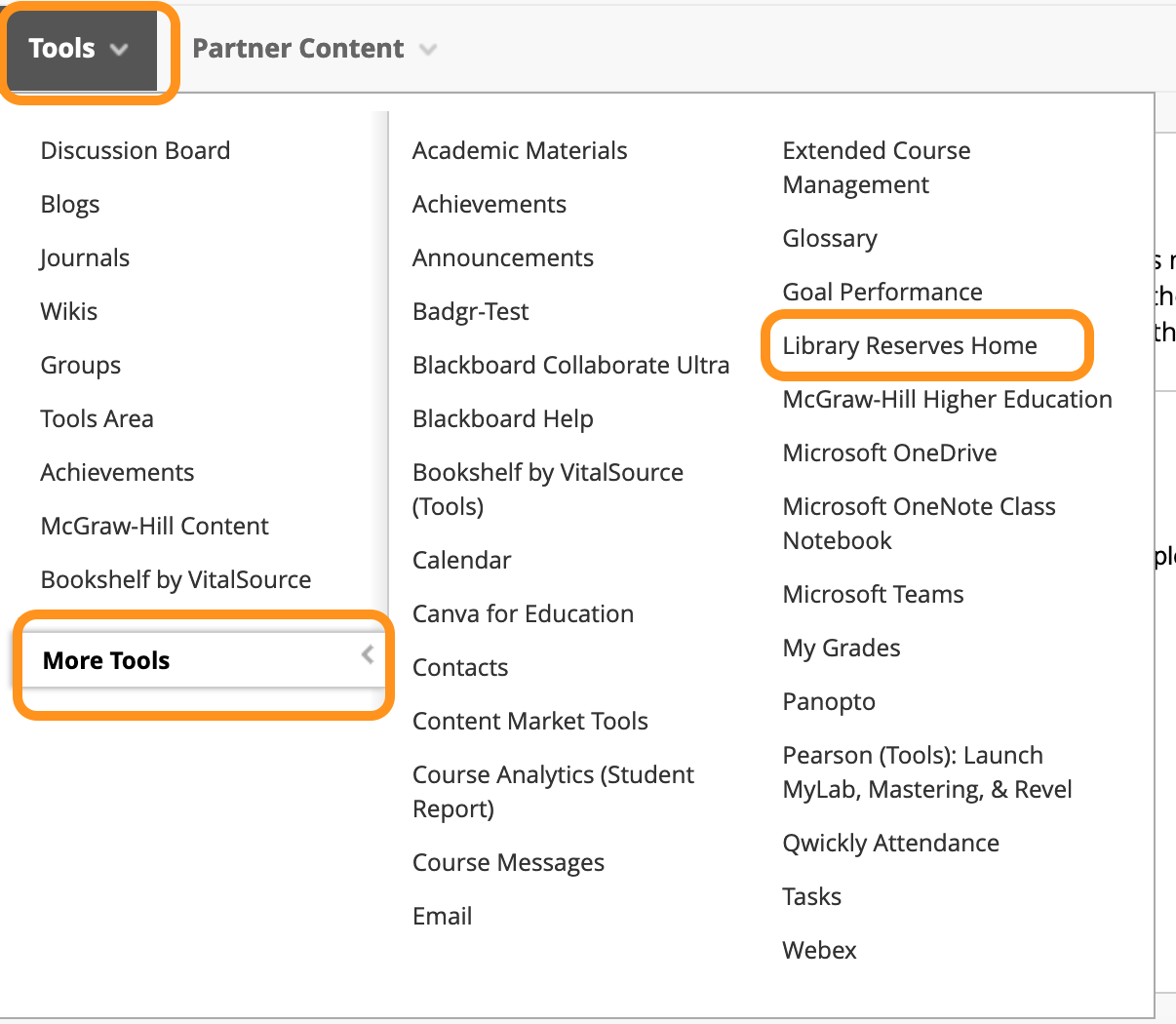
- The Tool link page will display. You can choose to add text to the description to provide context or instructions to your students.
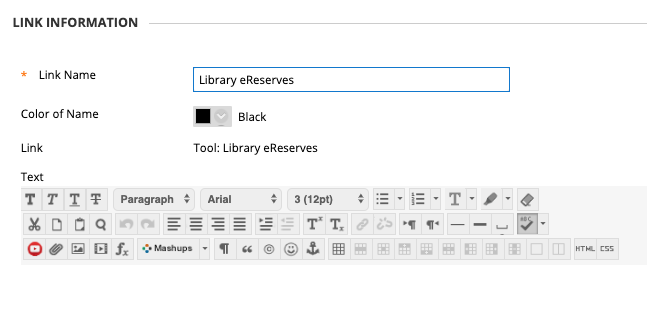
- Click SAVE.
Click the new reserves link to provision your course in Ares. You may be prompted to select the term associated with the course.
BE PATIENT. Ares may take a minute or two to provision your course and load on the new page.- After your course is provisioned in Ares, you will see the Reserves dashboard.
NOTE
A link to the Library Reserves Course Home must be created before you may add links to individual reserves items.
- Go to the content area in your course where you want the reserves link to reside. For example, you may have the link under Course Materials or Course Readings.
- Select "BUILD CONTENT" and then select "Library Reserves Item" from the expanded list.
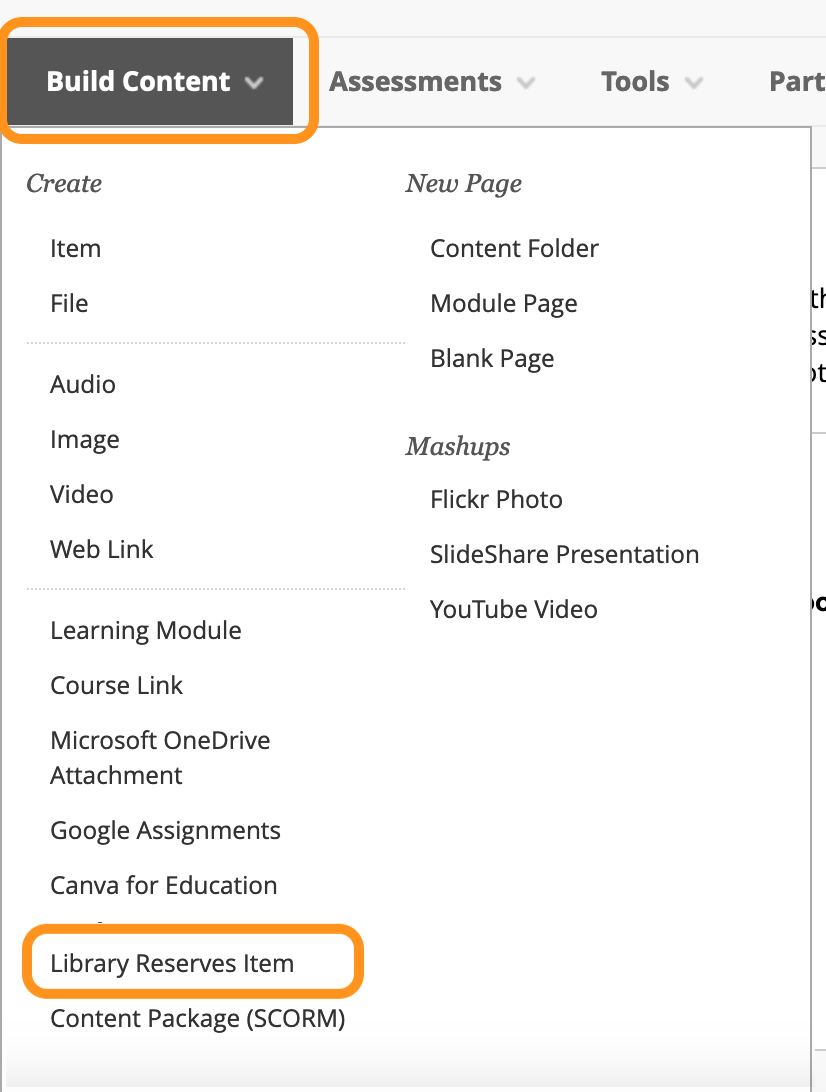
- Click the "Select" button on the left side of the reserves item you would like to add to your course. Note: If the "Select" button does not appear, please use Firefox or a private browser window.
- The link should be placed in your course.